Parent & Child Roles
Two simple modes. One optional lock.
Beenli is a shared household app. Everyone uses the same hive on any device. To keep things simple for kids and controlled by parents, the app works in two modes: Child Mode or Parent Mode. You can switch between them anytime with a toggle—or lock it with a PIN.
How Parent and Child Mode works
The app looks and behaves differently depending on which mode you're in. Kids get a clean, focused view. Parents get full access to everything.
Child Mode
Kids see only what they need—nothing more, nothing less.

What kids can see
- ✓Tell Beenli — Log completed tasks
- ✓Honey Jar — View their balance and transaction history
- ✓Flower Patch — See their savings goals and progress
- ✓Settings menu — Toggle light/dark mode, sounds on/off
What kids can't do
- ✗Add or withdraw money from accounts
- ✗Approve their own tasks during Payday
- ✗Edit tasks, users, or savings goals
- ✗Access billing, subscription, or app settings
Parent Mode
Parents get full access to every feature and setting.

What parents can do
- ✓Everything kids can do — Tell Beenli, view jars and goals
- ✓Payday — Review and approve completed tasks
- ✓Manage money — Add or withdraw funds from Honey Jars
- ✓Task management — Create, edit, or delete tasks
- ✓Family setup — Add or edit family members
- ✓Savings goals — Create, edit, or transfer money to goals
- ✓App settings — Billing, subscription, PIN setup
How to switch modes
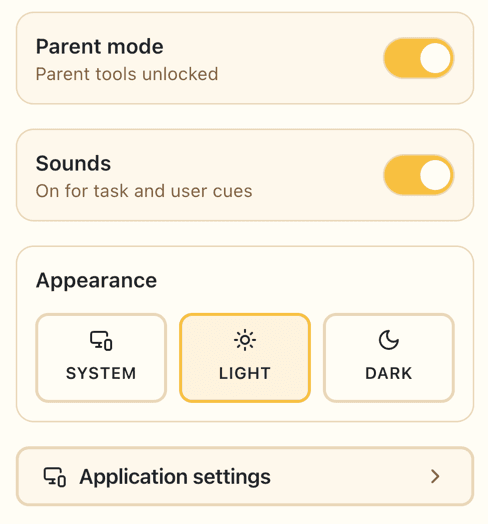
Switching between Parent Mode and Child Mode is simple—just tap the settings button in the top-right corner of the app.
The steps
- 1Tap the settings icon in the top-right corner
- 2You'll see a fly-out menu with options for light/dark mode, sounds, and the Parent/Child toggle
- 3Toggle to the mode you want
- 4If a PIN is set and you're switching to Parent Mode, you'll need to enter it
- 5The screen refreshes and you'll see the interface change to match the mode
That's it! You can switch back and forth anytime. Most families keep the app in Child Mode by default and switch to Parent Mode when it's time for Payday or to manage settings.
Want more control? Add a PIN
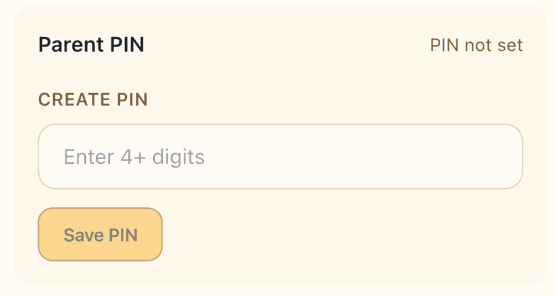
By default, anyone can toggle between Parent Mode and Child Mode using the settings menu. If you want to lock Parent Mode so only you can access it, set a 4-digit PIN.
What a PIN does
- ✓Prevents kids from switching to Parent Mode without entering the PIN
- ✓Protects payouts, balances, and account settings
- ✓Stops accidental changes or mischievous self-approvals
- ✓Keeps billing, subscription, and sensitive settings locked
Note: The PIN is stored locally in your hive—it's not ultra-secure encryption, just a practical way to keep curious or mischievous kids from making changes you didn't approve. You set the PIN under the Settings > Application Settings menu.
Ready to start?
Start your hive and choose your setup
You can switch modes anytime and add a PIN whenever you want extra control.